5.2 RStudio “Projects”
“RStudio projects are associated with R working directories. You can create an RStudio project:
- In a brand new directory
- In an existing directory where you already have R code and data
- By cloning a version control (Git or Subversion) repository ”
5.2.1 Advantages
- When re-opening a project, all the environment (path, objects) is restored (no data loss)
- Multiple projects can be created in parallel, keeping objects and environment separated (no project “cross-contamination”)
5.2.2 Project for the course
We will create an RStudio “Project” for this workshop. This will allow us to stay organized and easily open the project and associated data.
To create a project:
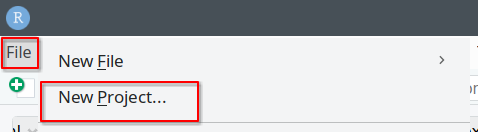
- Go to File -> New Project…
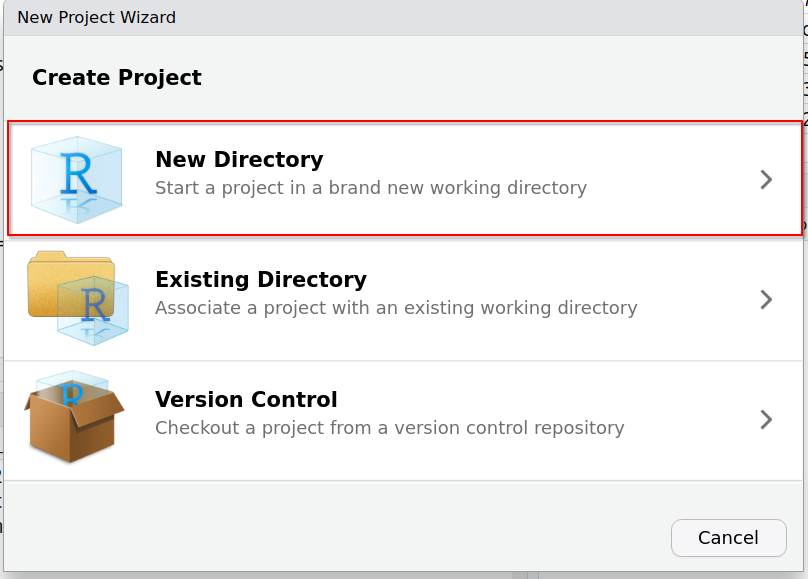
- Create Project: “New directory”
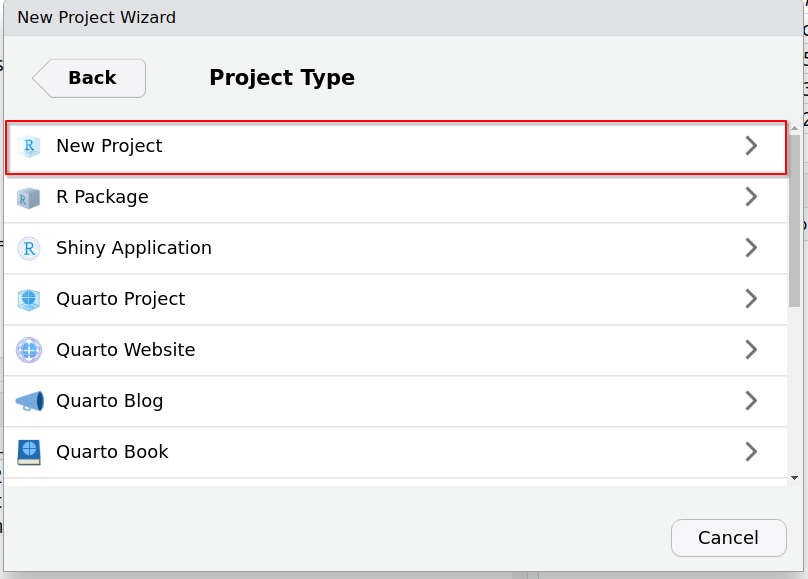
- Project Type: “New project”
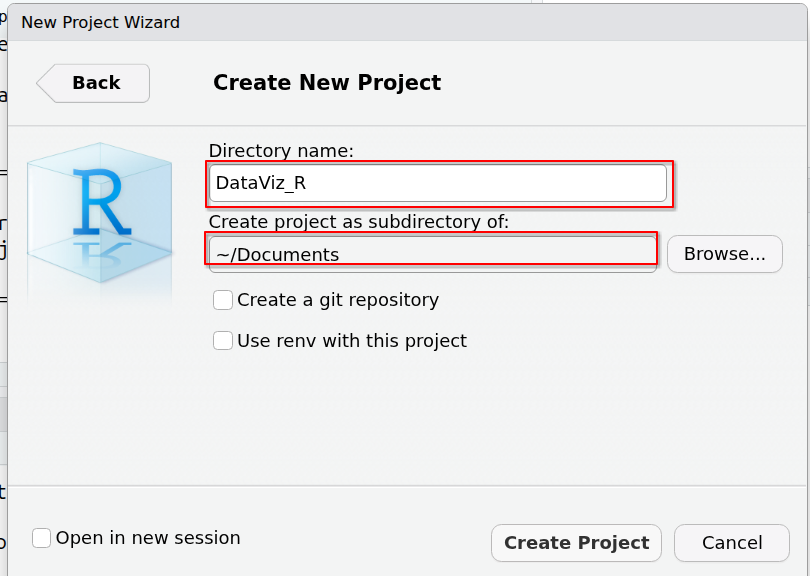
- Create New Project:
- Choose directory name, e.g.
DataViz_R - Navigate to the directory where you want the R project to be created and stored. Here, we can choose
~/Documents:
- Choose directory name, e.g.
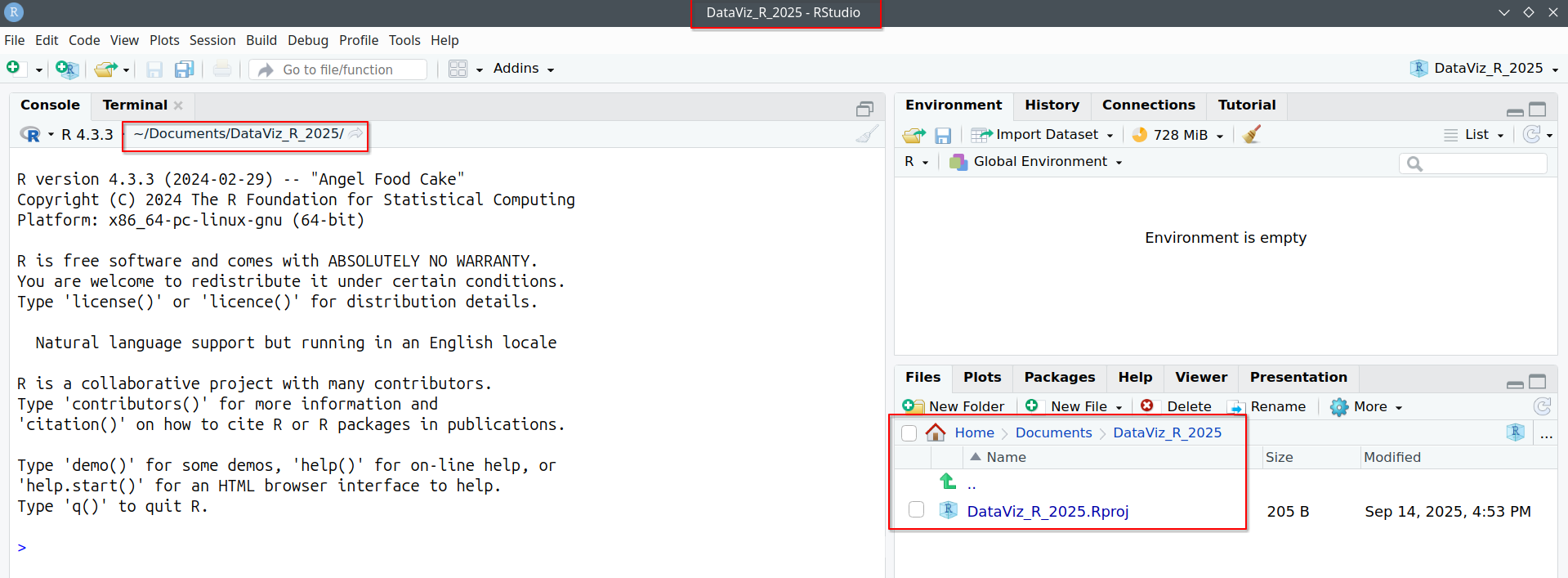
- A new session has now been started, where the working directory is automatically set to the directory where you chose your project to be stored: