7.2 Import / read in data
7.2.1 Load package into environment
From RStudio interface, in the bottom-right panel and Packages tab, search for the package name and tick the box:
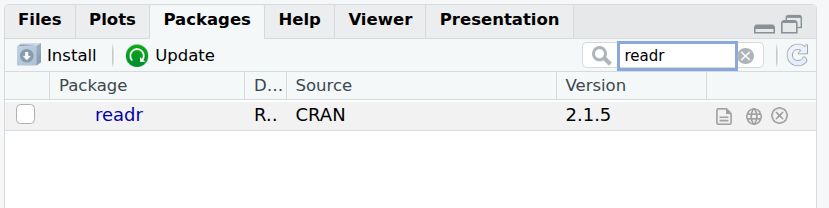
From the R console:
7.2.2 from CSV
Let’s now import the content of a first file in our environment.
There are several ways we can specify the path / location of a file:
- Using the “absolute path”:
# absolute path
geneexp <- read_csv(file="~/Documents/DataViz_R/DataViz_source_files-main/files/expression_20genes.csv")- Using the “relative path” (i.e. relative to where the session and R project are currently located), e.g.:
# relative path (this assumes you are in the course folder)
geneexp <- read_csv(file="DataViz_source_files-main/files/expression_20genes.csv")
Because your working directory is DataViz_R, R can find the DataViz_source_files-main without needing the full path (relative vs absolute path).
The content of file expression_20genes.csv is now stored in the object named geneexp.
The function also outputs some information about the data you are importing:
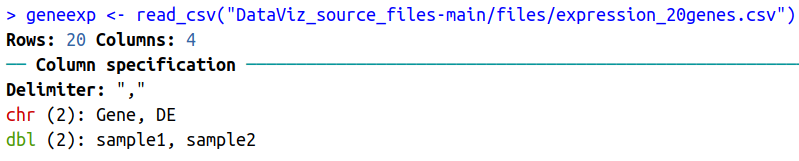
Such as that:
- The data contains 20 rows (observations), and 4 columns (variables).
- Out of these 4 columns:
- 2 contain characters (chr): Gene and DE.
- 2 contain numbers (dbl for “double”): sample1 and sample2
Notes:
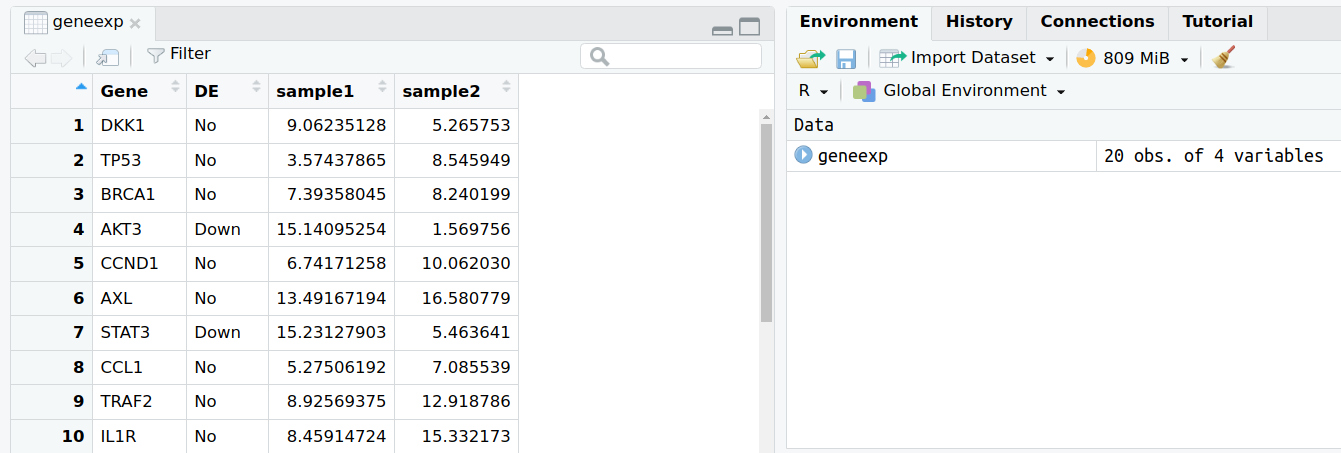
- Objects you create can be found in the Environment tab in the upper-right panel.
- If you click on an object name in the Environment tab, it will open on the upper-left panel. Let’s try with geneexp:
7.2.3 from Excel
{tidyverse} provides the {readxl} package with functions to read in Excel files.
Although working with text files (.txt, .csv, .tsv etc.) is a better practice, you can import Excel files using the read_excel() function.
First, load the {readxl} package (bottom-right panel -> Packages -> search and tick readxl, or from the console, as shown below).
library(readxl)
# Relative path:
read_excel(path="DataViz_source_files-main/files/expression_20genes.xlsx")
## # A tibble: 20 × 4
## Gene DE sample1 sample2
## <chr> <chr> <dbl> <dbl>
## 1 DKK1 No 9.06 5.27
## 2 TP53 No 3.57 8.55
## 3 BRCA1 No 7.39 8.24
## 4 AKT3 Down 15.1 1.57
## 5 CCND1 No 6.74 10.1
## 6 AXL No 13.5 16.6
## 7 STAT3 Down 15.2 5.46
## 8 CCL1 No 5.28 7.09
## 9 TRAF2 No 8.93 12.9
## 10 IL1R No 8.46 15.3
## 11 TAB2 No 9.76 14.6
## 12 HPK1 Down 14.1 7.34
## 13 TLR8 Up 2.69 16.3
## 14 TGFB No 7.83 12.5
## 15 STAT5 Down 18.6 9.21
## 16 ADAM17 Down 16.1 10.3
## 17 PTEN Up 0.0210 11.2
## 18 SMRT No 11.7 16.9
## 19 DVL No 4.33 6.84
## 20 MAPK2 Up 0.998 9.56If your Excel file contains multiple sheets, you can specify the sheet name using the sheet= parameter:
## # A tibble: 20 × 4
##    Gene   DE    sample1 sample2
##    <chr>  <chr>   <dbl>   <dbl>
##  1 DKK1   No     9.06      5.27
##  2 TP53   No     3.57      8.55
##  3 BRCA1  No     7.39      8.24
##  4 AKT3   Down  15.1       1.57
##  5 CCND1  No     6.74     10.1
##  6 AXL    No    13.5      16.6
##  7 STAT3  Down  15.2       5.46
##  8 CCL1   No     5.28      7.09
##  9 TRAF2  No     8.93     12.9
## 10 IL1R   No     8.46     15.3
## 11 TAB2   No     9.76     14.6
## 12 HPK1   Down  14.1       7.34
## 13 TLR8   Up     2.69     16.3
## 14 TGFB   No     7.83     12.5
## 15 STAT5  Down  18.6       9.21
## 16 ADAM17 Down  16.1      10.3
## 17 PTEN   Up     0.0210   11.2
## 18 SMRT   No    11.7      16.9
## 19 DVL    No     4.33      6.84
## 20 MAPK2 Up 0.998 9.56Note: parameters in a function are comma-separated:
- path is a first parameter
- sheet is a second parameter